By Eli Young, founder of Lock In Squad · Published · Updated
How to Block Apps on iPhone (3 Ways That Actually Work)
You can block apps on iPhone with Screen Time's App Limits (a daily cap) or Downtime (set hours), or with an app blocker that locks them for a session, while a Focus can only hide them. The steps below match iOS 26, and Apple's iOS 27 guide describes Time Allowances and a Screen Time Schedule in their place.
Menu names checked against Apple's iPhone User Guide for iOS 26 and iOS 27 on September 22, 2026.
1. Screen Time limits and Downtime (built in)
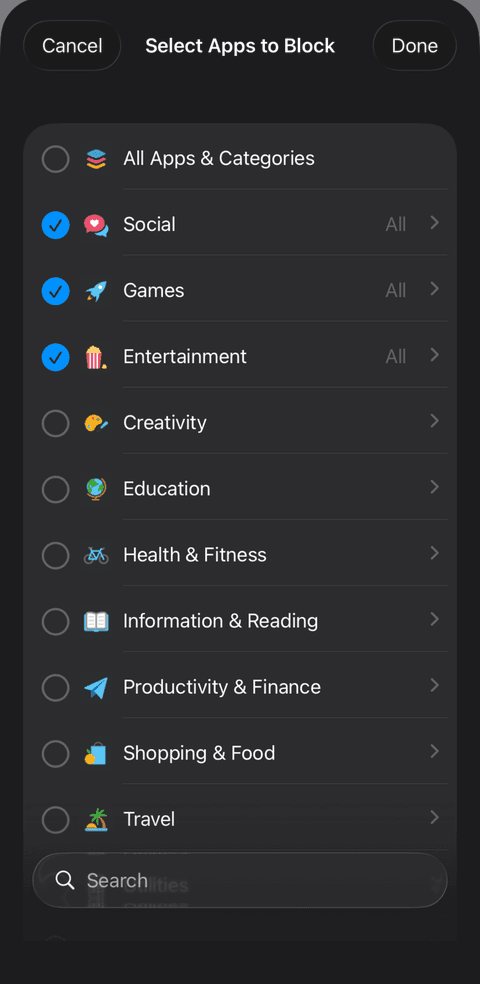
Go to Settings, then Screen Time, then App Limits, and tap Add Limit. Choose one or more categories, or tap a category to pick individual apps inside it, then tap Next and set the time allowed. Customize Days lets weekends have a different limit, and if you pick several apps or categories, Apple's guide says the limit "applies to all of them." When you reach it, a limit screen covers the app. On iOS 27, the closest setting is Settings, then Screen Time, then Time Allowances, which caps time for each category of apps.
Limits are worth setting. A 2020 experiment found that letting people set limits on their own future screen time substantially reduced their use. The catch is a default that Apple's guide states plainly, "By default, Screen Time limits can be ignored once reached." A Screen Time passcode, set under Settings, then Screen Time, then Lock Screen Time Settings, means more time after a limit needs that code.
For hours when apps should stay shut, use Downtime instead. Go to Settings, then Screen Time, then Downtime, tap Scheduled, choose Every Day or Customize Days, and set the start and end times. Apple sends a reminder five minutes before it begins. Once you have a passcode, turn on Block at Downtime so you cannot simply carry on past that reminder, and add any app you need during those hours under Always Allowed.
2. Focus (built in)
A Focus can silence notifications from the apps you choose and switch your iPhone to a Home Screen page without them. Go to Settings, then Focus, pick one such as Work, choose its Home Screen page, and tap Add Schedule if you want it to turn on at set times. A Focus never stops you from opening an app, since apps left off that page are still in search and the App Library, so it helps most when notifications were the main problem.
3. A dedicated app blocker (the one that sticks)
A dedicated blocker adds the friction Apple's tools lack, at the moment you reach for the app. Lock In Squad uses Apple's own Screen Time picker, so you choose apps or whole categories the same way, then start a timer or stopwatch. Those apps stay blocked until you hold a button for the 1 to 30 seconds you set, which ends the session early or after the timer reaches zero.
For hours you want blocked every week, such as weekdays from 9 AM to 5 PM, Lock In Squad also runs up to 5 schedules. The apps you picked are blocked at those times even with the app closed, and ending a block early takes the same hold.
In a 2023 study of 280 people using the one sec app, which puts a pop-up with a short wait in front of a chosen app, people backed out of 36% of their attempts to open it, and after six weeks they opened those apps 57% less.
Lock In Squad also turns focusing into a habit, which is the part Screen Time never gives you. Streaks count on the days you choose, and you earn minutes for the time you stay locked in, which you can spend on cosmetics, so there is a reason to come back tomorrow.
The simplest setup
- Install Lock In Squad from the App Store, where it is listed as Lock In Squad: App Blocker.
- Open the app and tap Continue on its first screen, then allow Screen Time access when your iPhone asks.
- Choose the apps or categories that derail you most.
- Set a timer, or use the stopwatch, and tap Lock In.
- For hours you want blocked on set days, tap Add a schedule on the Block tab.
- Keep the streak going on the days you picked.
Questions
How do I block apps to focus on my iPhone?
Block them for the length of a focus session instead of all day, so they come back when you finish. A blocker with a timer, such as Lock In Squad, does this in one step. Turn on a Focus at the same time, since the blocker handles the apps and the Focus handles notifications.
Can I completely block an app on iPhone?
For set hours, yes. With Block at Downtime on, restricted apps cannot be opened until downtime ends, and if a friend chooses your Screen Time passcode, you cannot switch that off yourself. Apps that came with the iPhone can also be hidden under Content & Privacy Restrictions, then Allowed Apps & Features, until you turn them back on.
How do I block apps on iPhone without Screen Time?
Touch and hold the app and tap Require Face ID, so opening it needs a scan, though your own face still gets you in. App blockers such as Lock In Squad use Apple's Screen Time permission behind the scenes, but you never open the Screen Time settings or set a passcode.
How do I block apps during certain times?
Schedule Downtime on iOS 26, or on iOS 27 set the hours in Screen Time Schedule, where each time window can allow different app categories. In Lock In Squad, tap Add a schedule on the Block tab, name it and pick its days and its start and end times. You can have up to 5, and the apps you picked are blocked at those times even with the app closed.
How do I block an app temporarily?
Start a session in an app blocker, so the apps come back when you end it and none of your settings change. With Apple's tools, go to Settings, then Screen Time, then Downtime, and tap Turn On Downtime Until Tomorrow. To lift an App Limit early instead, go to App Limits, swipe left on the limit and tap Delete.
Apple sources for the answers: Content & Privacy Restrictions, locking an app with Face ID, Screen Time Schedule on iOS 27.
Block distracting apps on your iPhone
Free, with no subscription, and a hold that makes the block stick.