A free app blocker for iPhone, with a whitelist mode
Lock In Squad is a free app blocker for iPhone. It blocks the apps, categories and websites you pick through Apple's Screen Time, or, in whitelist mode, keeps up to 50 apps open and blocks the rest. Start a timer or stopwatch, and your picks stay blocked until you hold the Lock Out button for 1 to 30 seconds. Every feature is free, and $4.99 paid once removes the ads.
On the App Store the app is listed as Lock In Squad: App Blocker, by Eli Young. It installs on iOS 15.1 or later, and blocking needs iOS 16 or later.
Block list or whitelist
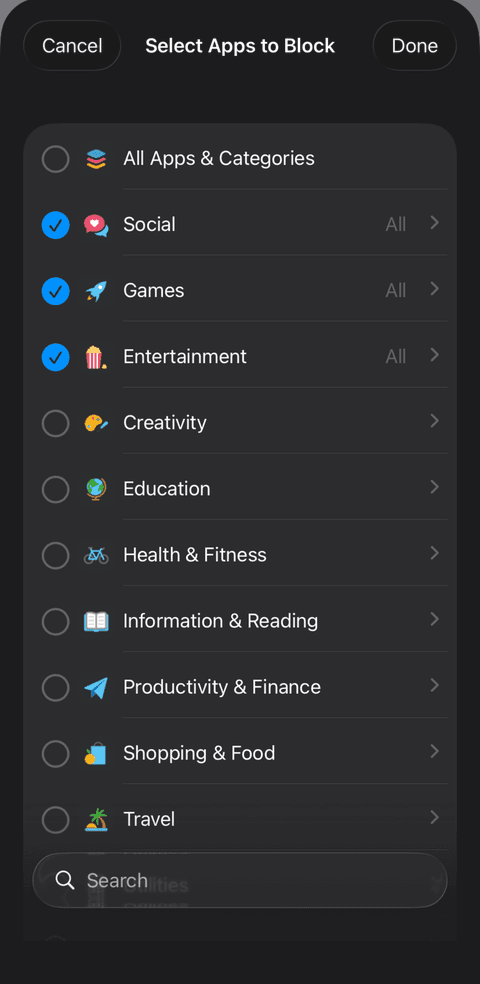
The top of the Block tab has two choices, Block these apps and Allow only these apps. With Block these apps, you tap Select apps and Apple's picker opens. Choose single apps, whole categories such as Social, Games and Entertainment, or websites, then tap Done. Everything else stays open.
Allow only these apps is the whitelist mode. You pick up to 50 single apps to keep open, since a whole category can't stay open, and every other app and website stays blocked while you're locked in. Phone, Settings and anything under Always Allowed in Screen Time stay open, so people can still reach you.
Screen Time access, and why it is needed
Apple lets an app block other apps only through Screen Time, and only once you allow it. The first screen you see, Choose apps to block, asks for that one permission. Tap Continue, allow it when your iPhone asks, and confirm with Face ID or Touch ID. If you tapped Skip for now, the Block tab asks for it instead, under Enable app blocking.
The apps you pick in Apple's picker stay on your iPhone. When you open a blocked app, your iPhone shows its Screen Time shield over it until the lock-in ends. You can start as a guest without an account, and adding friends takes a free one. The app asks to send notifications the first time you tap Lock In.
The hold to quit
Once a session starts, the Lock In button turns into Hold to Lock Out. To end the session you press and hold it for the delay you picked in Settings, behind the gear on the You tab, anywhere from 1 to 30 seconds. New accounts start at 5 seconds. If you let go before the countdown finishes, the session keeps running.
A stopwatch session runs until you hold Lock Out. A timer of 15 minutes or more opens your picks when it reaches zero, even with Lock In Squad closed, and a shorter one opens them as soon as the app is open, since Apple's shortest Screen Time schedule is 15 minutes. A session you forget ends by itself, the first one after 4 hours and any other after 24. While you're locked in, a Live Activity shows the clock on the Lock Screen and in the Dynamic Island.
How it differs from Screen Time limits and Focus
Your iPhone already has App Limits and Downtime in Screen Time, and a Focus can silence apps. Here is how they compare with a lock-in.
| Screen Time limits | Focus | Lock In Squad | |
|---|---|---|---|
| What it does | Caps daily time in apps or categories, or shuts them during Downtime | Silences notifications and can hide apps from a Home Screen page | Blocks the apps, categories and websites you pick for a session or a schedule |
| Getting back in | By default a limit can be ignored once reached, and your own passcode approves more time | Apps stay in search and the App Library, so you can still open them | Hold Lock Out for 1 to 30 seconds, a delay you set |
| What it tracks | Screen time, pickups and notifications per app | Nothing | Your focus sessions, a streak on the days you choose, and a heatmap |
| Cost | Built into iPhone | Built into iPhone | Free, and $4.99 paid once removes ads |
The two work well together: Lock In Squad keeps the apps shut, and a Focus keeps their notifications quiet. For step by step instructions for Apple's own tools, read how to block apps on iPhone.
Schedules that run with the app closed
To block your picks at set times, open the Block tab and tap Add a schedule under Scheduled blocks. Name it and pick the days it repeats and its start and end times, such as weekdays from 9 AM to 5 PM. You can have up to 5, and your picks are blocked at those times even with Lock In Squad closed. To end a running block early, hold End early on the Lock In tab for your delay, and later blocks still start on time.
Lock in with friends
Add friends by name, user ID or a link you share, or text an invite from your contacts, and lock in together in a squad. Start a session and the friends you pick get a notification to lock in with you. Friends on Android can join the same squad. A friend without the app can open your invite link. On iPhone, that page's App Store button copies the invite, and the app asks to paste it when setup finishes. Read more about the app blocker with friends.
A weekly leaderboard ranks you and your friends by time locked in, and each week's winner wears a crown all the next week. Home screen widgets show your own lock with your streak and today's minutes, and Lock In Streak also comes in two Lock Screen sizes. VoiceOver can lock in and lock out, and every screen has labels, roles and states.
iPad
The same app runs full screen on iPad in portrait and blocks apps through Screen Time the same way. On Android phones and tablets, see the app blocker for Android.
Questions
Is there a free app blocker for iPhone?
Yes. Lock In Squad is free on the App Store and blocks the apps, categories and websites you pick during a timer or stopwatch session, with a whitelist mode that keeps only the apps you choose open. Blocking needs iOS 16 or later. The free version can show an ad after you end a stopwatch lock-in or quit a timer early, never in your first 3 lock-outs, and a $4.99 purchase, paid once, removes the ads for good.
Why does an iPhone app blocker need Screen Time access?
On iPhone, Apple lets an app block other apps only through its Screen Time framework, and only after you allow it. Lock In Squad asks once on its first screen, and your iPhone confirms with Face ID or Touch ID. The apps you pick in Apple's picker stay on your iPhone.
Can Lock In Squad block websites on iPhone?
Yes. Any website you pick in Apple's Screen Time picker is blocked along with your apps while you're locked in. Picking a category such as Social covers its apps and not its websites, so add the sites on their own. In Allow only these apps, every website stays blocked during a lock-in.
Can I schedule app blocking on iPhone?
Yes. In Lock In Squad, open the Block tab, tap Add a schedule, name it and pick its days and its start and end times. You can have up to 5 schedules, and the apps you picked are blocked at those times even with the app closed. To end a running block early, hold End early on the Lock In tab.
Does it work on iPad?
Yes. Lock In Squad runs full screen on iPad in portrait, and it blocks apps through Screen Time the same way it does on iPhone. Signed in to an account, your stats, streak and Minutes are the same on every device.
Block distracting apps on iPhone
Free, with a whitelist mode and no subscription. $4.99 once removes ads.